How to Batch Fill PDF Forms from Excel
Power PDF Filler works in 3 steps: select your PDF form, select and map your Excel data, then click 'Ready, Go'. Each row becomes a filled PDF — even 1,000+ forms in seconds. Save your field mappings as a template to reuse next time. Works inside Excel on Windows, Mac, and the web.
Select Your PDF Form
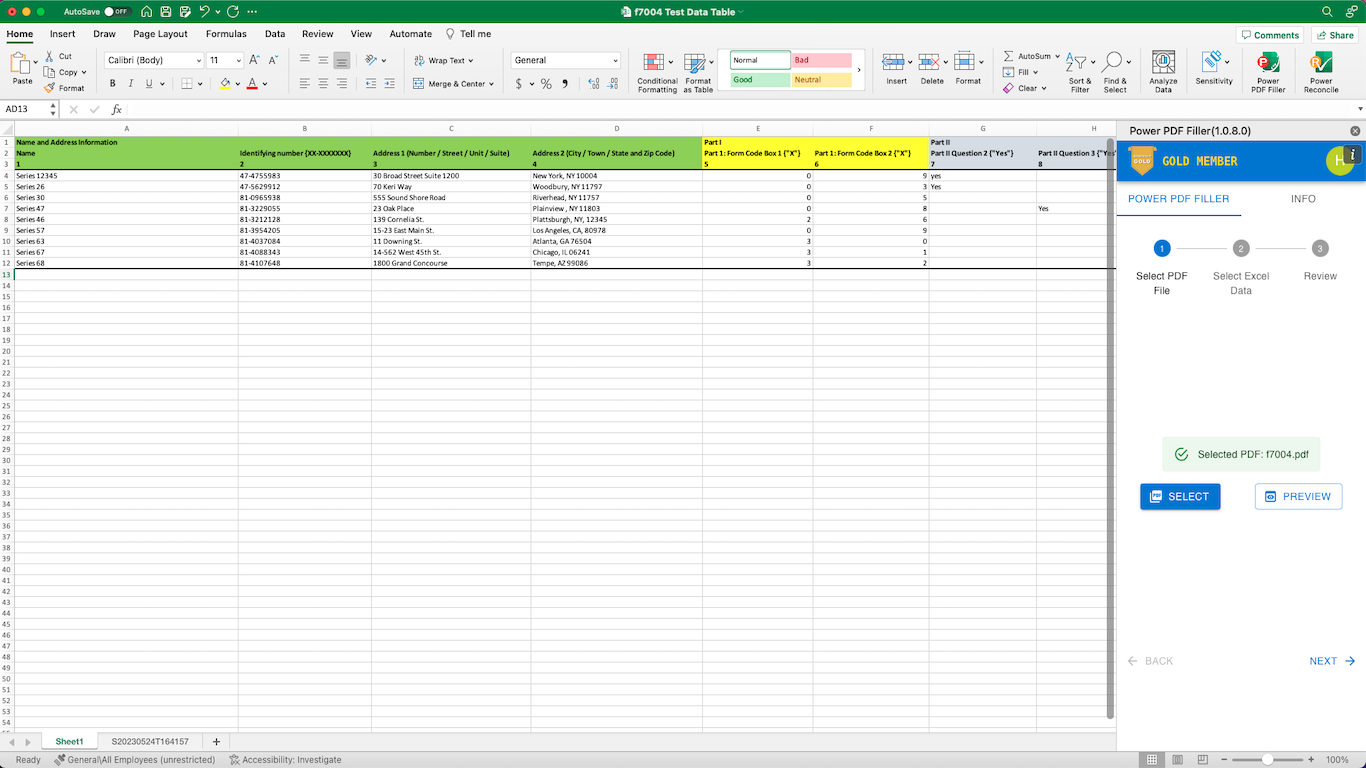
Click Select in Power PDF Filler and choose the PDF form you want to fill. The add-in automatically detects all fillable form fields in your PDF. Supports any standard fillable PDF including W-2, 1099, ACORD, I-9, and custom forms.
Select & Map Your Excel Data
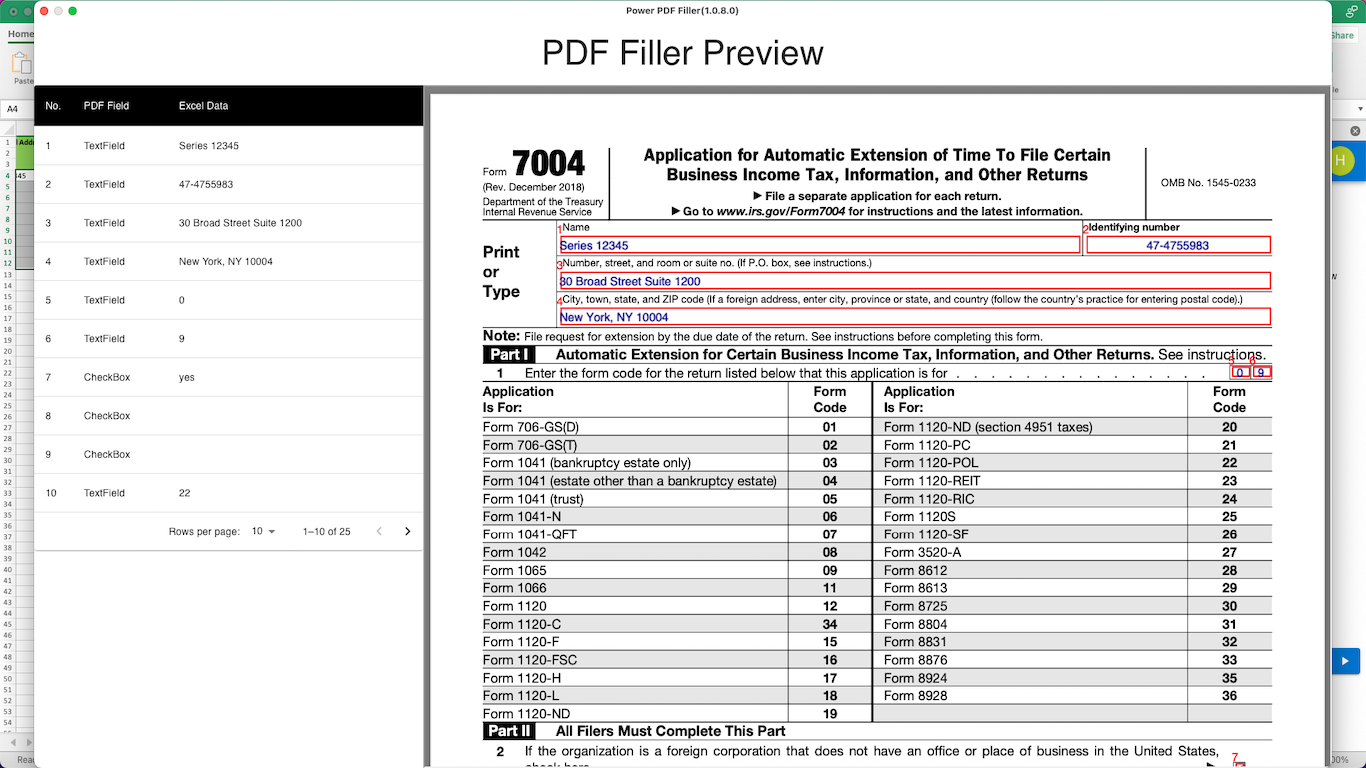
Highlight the rows and columns in your spreadsheet that contain the data for your forms. Each row becomes one filled PDF. Map your Excel column headers to PDF form fields — or let Power PDF Filler auto-match them for you. Save your field mappings as a reusable template to skip this step next time.
Click Ready, Go
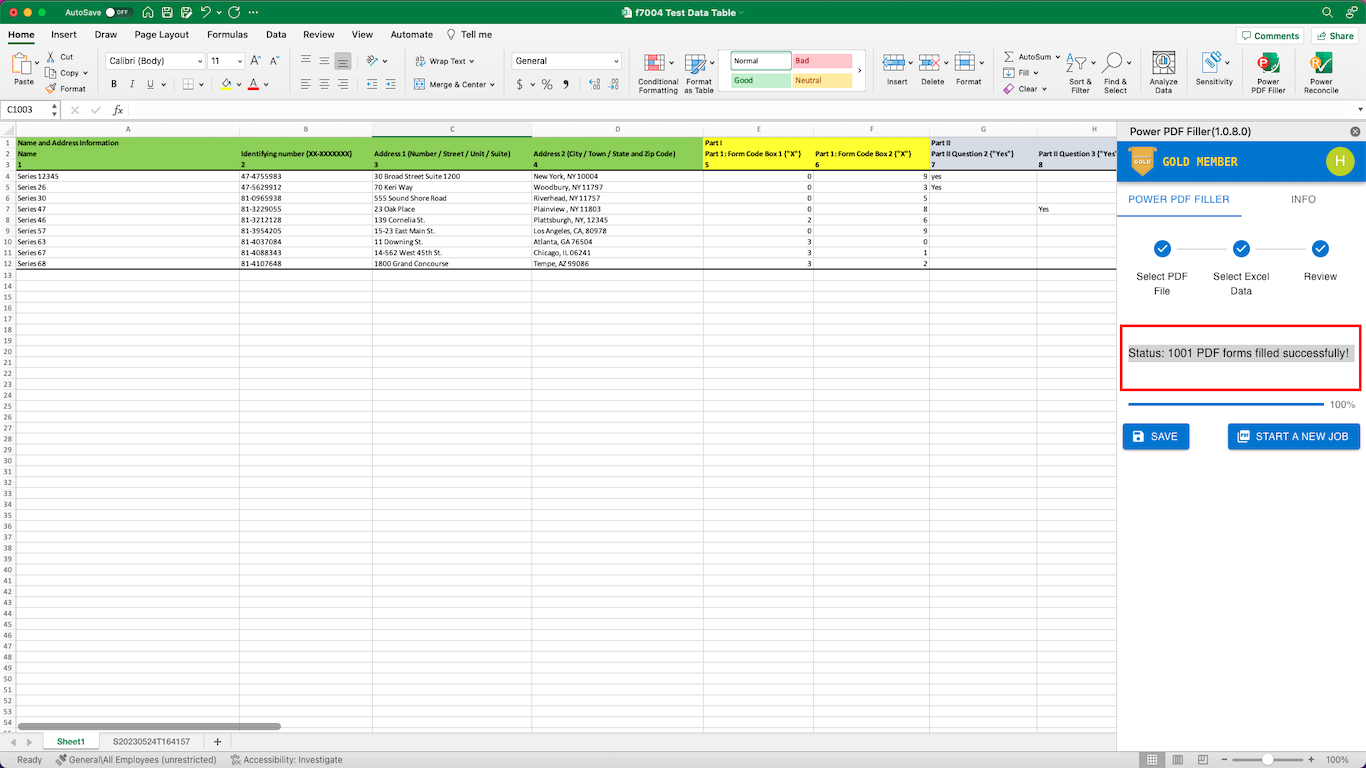
Power PDF Filler fills all your forms in seconds — even 1,000+ PDFs. Download each filled PDF individually or grab them all at once as a ZIP file.
How does Power PDF Filler work in practice?
Ready to start batch filling PDFs?
Try Power PDF Filler free for 30 days. No credit card required.
Start Free TrialFrequently Asked Questions
How do I batch fill PDF forms from Excel? ▼
What is the best tool for filling PDF forms in bulk? ▼
Does my PDF need fillable form fields? ▼
How many PDFs can I fill at once? ▼
Does my data leave my computer? ▼
Ready to stop filling PDFs manually?
Start your free trial — no credit card required.
Try Free on Microsoft Excel